
A useful WordPress backup plan answers four questions: what can you lose, how far back can you recover, can you get the copy without your host, and can you restore a working site? Start with those answers before buying a backup add-on or choosing a hosting package. A green “backup completed” message answers only part of the problem.
This guide is for owners of self-hosted WordPress sites, including small US businesses. It covers recovery planning rather than ranking backup plugins. The examples are planning scenarios, not performance tests of a hosting service.
Choose your recovery targets first
Recovery point objective (RPO) is the amount of recent work you are prepared to lose, expressed as time. Recovery time objective (RTO) is your target for getting the required service working again. They are requirements, not promises that your current hosting meets them.
Suppose your site receives quote requests throughout the day. “We can recreate yesterday’s blog edit” is different from “we can lose yesterday’s inquiries.” Check whether the form stores submissions in WordPress, sends them only by email, or also writes to a customer management service. A WordPress restore does not automatically recover every external system.
- Low-change brochure site: identify the latest acceptable content version and the person who can restore it.
- Lead-generation site: set the target around submissions and uploaded files, not just page edits.
- Store: include orders, payment records and stock reconciliation. A full database rollback can undo newer store data.
Know what the backup actually contains
WordPress documents files and the database as separate parts of a recovery set. Ask whether your copy includes uploads, themes, plugins, configuration and the relevant database tables. A file download alone is not normally a database export. Keep the capture times together so you do not combine unrelated versions.
Also list items outside the WordPress installation: DNS records, email service, server redirects, scheduled jobs and third-party integrations. Save the configuration needed to rebuild these services securely. For example, Kinsta documents that its downloadable WordPress archive excludes MyKinsta settings and custom server configuration. “Full backup” still needs a defined boundary.
A completed plan for a service business
Illustrative scenario: a Chicago repair business uses WordPress for quote requests. Forms save to the website database and send a notification to business email. The owner accepts up to two hours of missing website submissions and wants the quote form working within four hours of an incident.
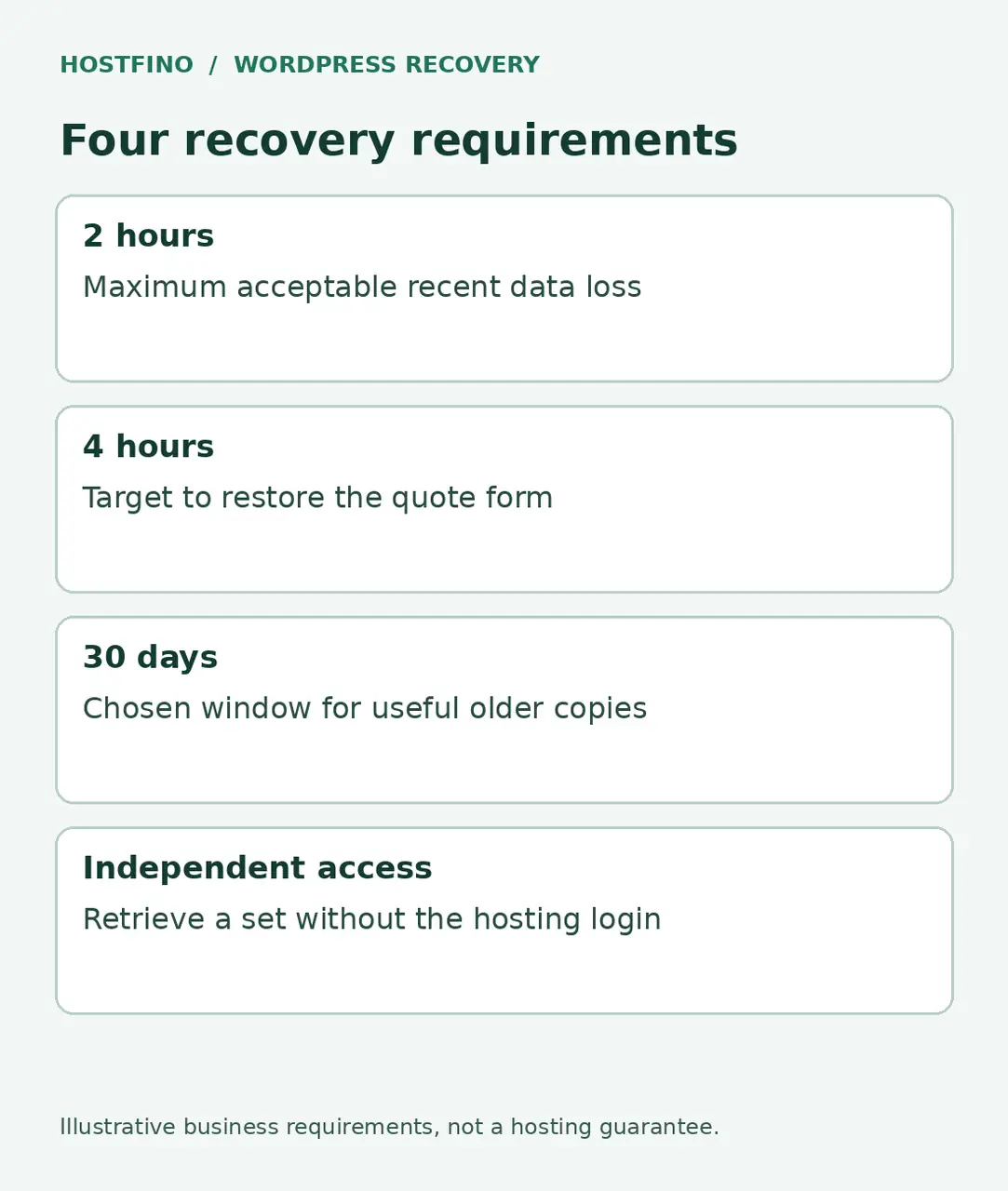
| Requirement | Chosen target |
|---|---|
| Recent data exposure | At most 2 hours |
| Service recovery | Quote form working within 4 hours |
| Older recovery points | At least 30 days of useful history |
| Independent access | A copy retrievable without the hosting login |
A package with one daily backup does not meet the two-hour target by itself. Thirty daily copies improve historical coverage but do not shorten the gap between captures. The owner therefore needs a more frequent database backup path, monitoring for failed jobs and a matching file-recovery strategy. The four-hour target remains unproven until someone performs and times a recovery rehearsal.
Why choose 30 days here? Assume this owner reviews the website weekly and may miss a subtle form problem for two reviews. Thirty days provides planning headroom beyond that hypothetical 14-day detection delay. It is not a universal legal or technical retention rule.
Decision: reject a cheaper package if the extra backup service, recovery labor and access limitations make this plan impractical. Accept a host with shorter included retention only if the independent process demonstrably fills the gap. If the rehearsal exceeds four hours, simplify the restore procedure or buy assistance before calling the plan ready.
Read the product scope behind the backup badge
Documentation checked October 28, 2026 illustrates why a single feature label is insufficient:
- SiteGround: its standard Site Tools service lists up to 30 daily copies for shared hosting and up to 7 for Cloud. Those are different product scopes; do not assign the shared-hosting history to every plan.
- Hostinger: its download guide states seven days for daily copies and six weeks for weekly copies. Longer weekly history does not provide a daily restore point for every date.
- Kinsta: its restore workflow can target an existing staging environment. That is useful for rehearsals, but the backup’s age and your validation work still affect recovery.
Use hosting plans with daily backups to build a shortlist, then confirm retention, exclusions, restore permissions and any fees for the exact offer. These examples compare documented capabilities, not recovery speed or overall hosting quality.
Write the operating plan in plain English
- Assign one person to check backup failures and one backup contact who can act if that person is unavailable.
- Record where copies live, which account owns them and how to recover access without a working website.
- Check the oldest and newest usable restore points rather than relying only on the configured schedule.
- Rehearse on an isolated test site. Verify login, recent content, media and the business action that matters, such as submitting a quote.
- Repeat the exercise after a major hosting, backup-tool or application change. Choose a routine review interval that fits the business.
Backup retention, a restore test, an offsite copy and WooCommerce order protection solve different parts of this plan. Start with the weakest part. If responsibility for application recovery is unclear, compare what managed WordPress hosting includes before assuming the host will do the work.
Cover illustration: Jakub Zerdzicki / Pexels.
Sources
Documentation checked October 28, 2026. Product scope and interfaces can change; use the instructions for your current account.